
Lightware GRF250/GRF500 Gimbal Lidar
LightWare GRF250 and GRF500 are small and light Lidar modules with a range of 250m and 500m, respectively.
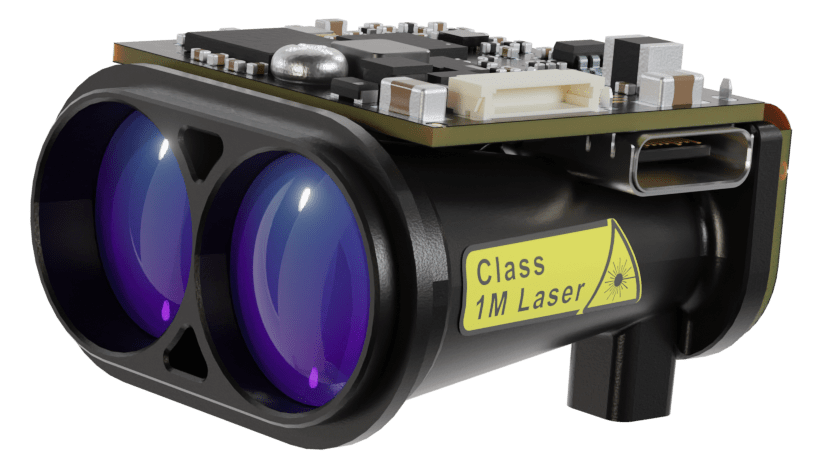
INFO
The Lidar driver is not included in the default build of PX4. You will need to create and use a custom build.
Where to Buy
Order these modules from:
Hardware Setup
The rangefinder can be connected to any unused serial port, such as TELEM2. Parameter Configuration explains how to configure the port to use and the other properties of the rangefinder.
PX4 Setup
Add the Driver to the PX4 Build
The lightware_grf_serial driver for this Lidar is not included in PX4 firmware by default. In order to use these modules you will first need to update the firmware configuration to add the driver, and then build the firmware.
Update the firmware configuration. You can use either of the following options:
Menuconfig:
- Install and open menuconfig
- In menuconfig, navigate to Drivers > Distance sensors
- Select/Enable
lightware_grf_serial - Save the configuration
Manually update
default.px4to include the configuration key:Open the
default.px4boardconfig file that corresponds to the board you want to build for. For example, to add the driver tofmu-v6xboards you would update /boards/px4/fmu-v6x/default.px4boardAdd the following line and save the file:
txtCONFIG_DRIVERS_DISTANCE_SENSOR_LIGHTWARE_GRF_SERIAL=y
Build PX4 for your flight controller target and upload the new firmware.
Parameter Configuration
You will need to configure PX4 to indicate the serial port to which the sensor is connected (as per Serial Port Configuration) and also the orientation and other properties of the sensor.
The parameters to change are listed in the table.
| Parameter | Description |
|---|---|
| SENS_EN_GRF_CFG | Set to the serial port the sensor is connected to. |
| GRF_RATE_CFG | Set the update rate. |
| GRF_SENS_MODEL | Set the sensor model to use. |
Testing
You can confirm that the sensor is correctly configured by connecting QGroundControl, and observing that DISTANCE_SENSOR is present in the MAVLink Inspector.
Moving the sensor around at various distances from a surface will have the current_distance value change.
Troubleshooting
If you are having problems with connecting to the sensor you may need to unassign a the default serial port. Unassign Default Serial Port